
Extreme One
Guides Extreme One
Learn Extreme One step by step: save HOME, store fishing spots, set up a baiting run and manage quick points.
1Start with HOME
- Connect the autopilot. Position the boat where it should return and wait for a current GPS position.
- Tap the pin with a plus, then choose Save home point. Wait for confirmation and check the HOME marker.
- To return, tap HOME and choose Navigate. Save HOME again if you change your launch location.
2Save a fishing spot
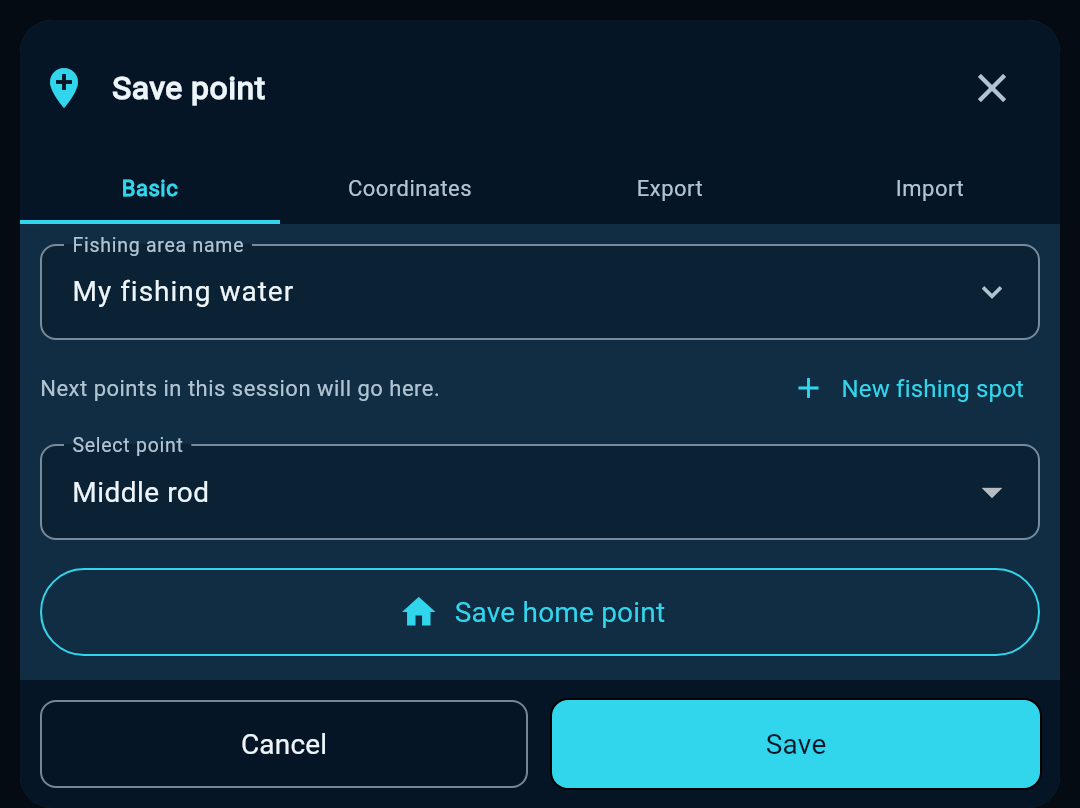
- At the spot you want to remember, open the save-point form with the pin-plus icon.
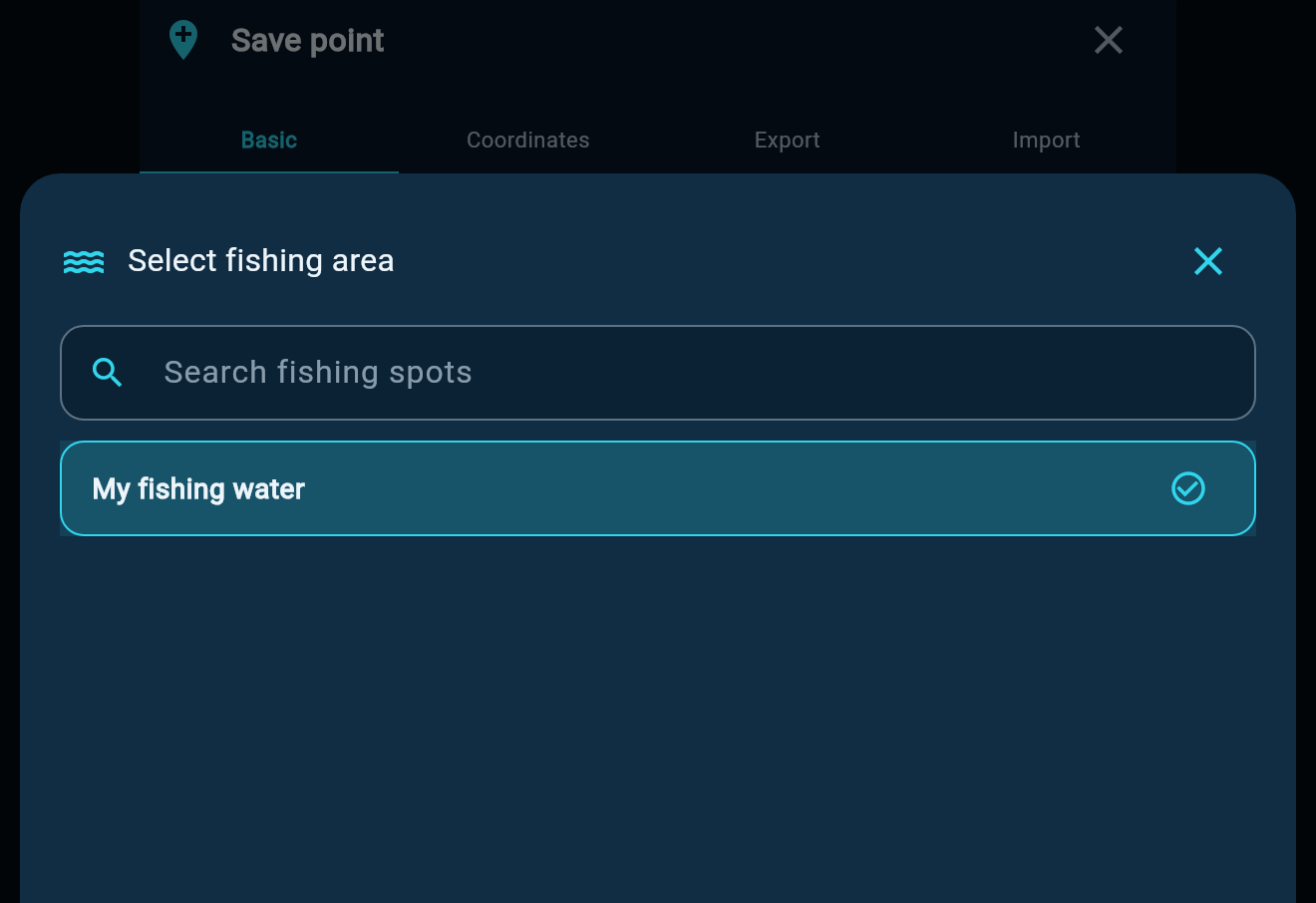
- Choose an existing fishing water or create a new one. Choose a point and press the lower Save button. This stores the boat’s current position.
- To choose a location on the map, press and hold it. Tap the green pin and save it to the database, or navigate there without saving it first.
3Baiting run, hoppers and return
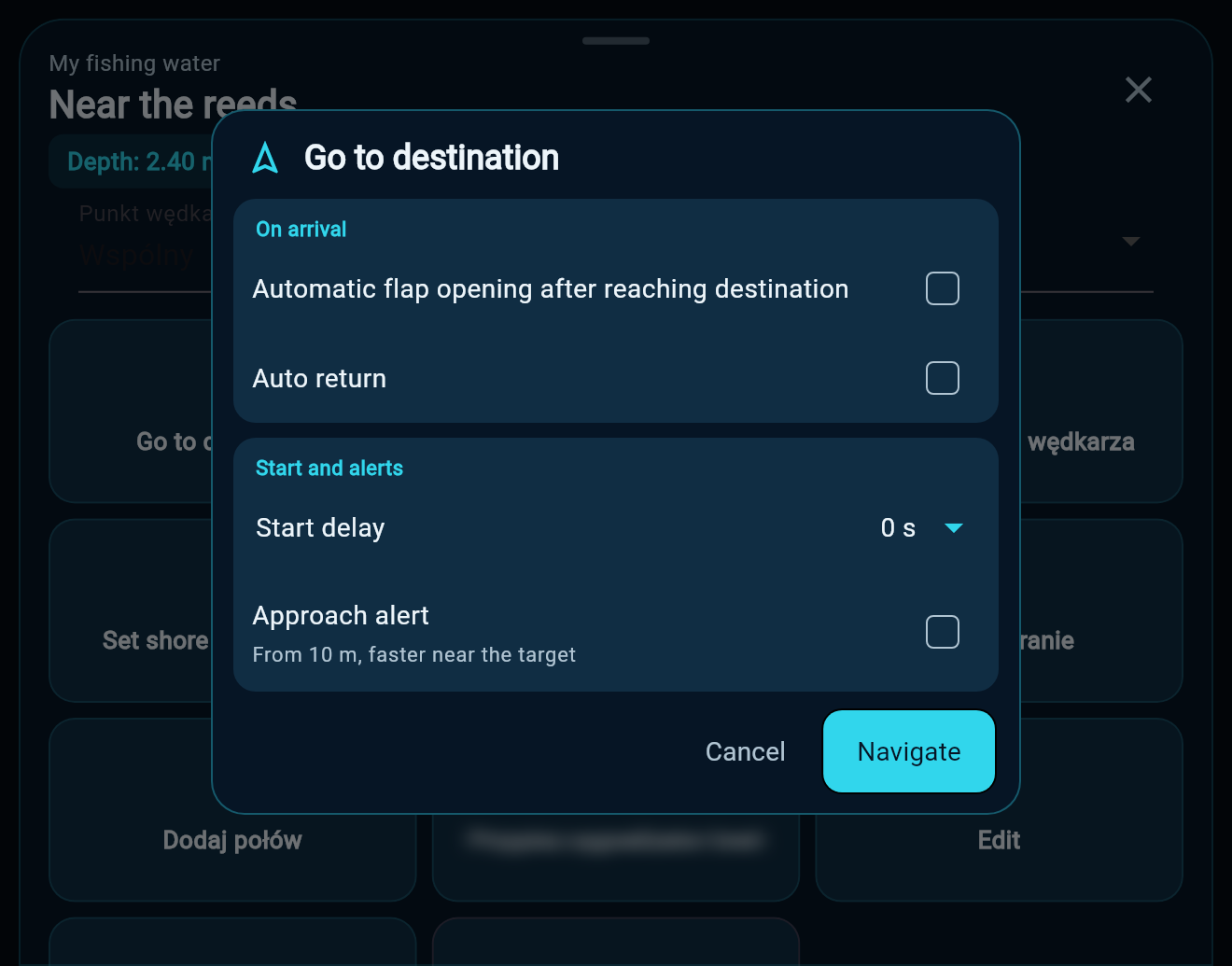
- Save HOME first. Tap a saved point or a green pin and choose Go to destination.
- Enable hopper opening for a drop. Automatic return also enables hopper opening and brings the boat back to HOME. Leave both off to reach the target without dropping.
- Check the drop contents, the start delay (0, 15, 30 or 60 seconds) and the approach signal, which starts 10 metres before the target. Confirm to start.
4Quick points and the green pin
- Tap the orange lightning bolt to save the current boat position as a quick point, such as S01.
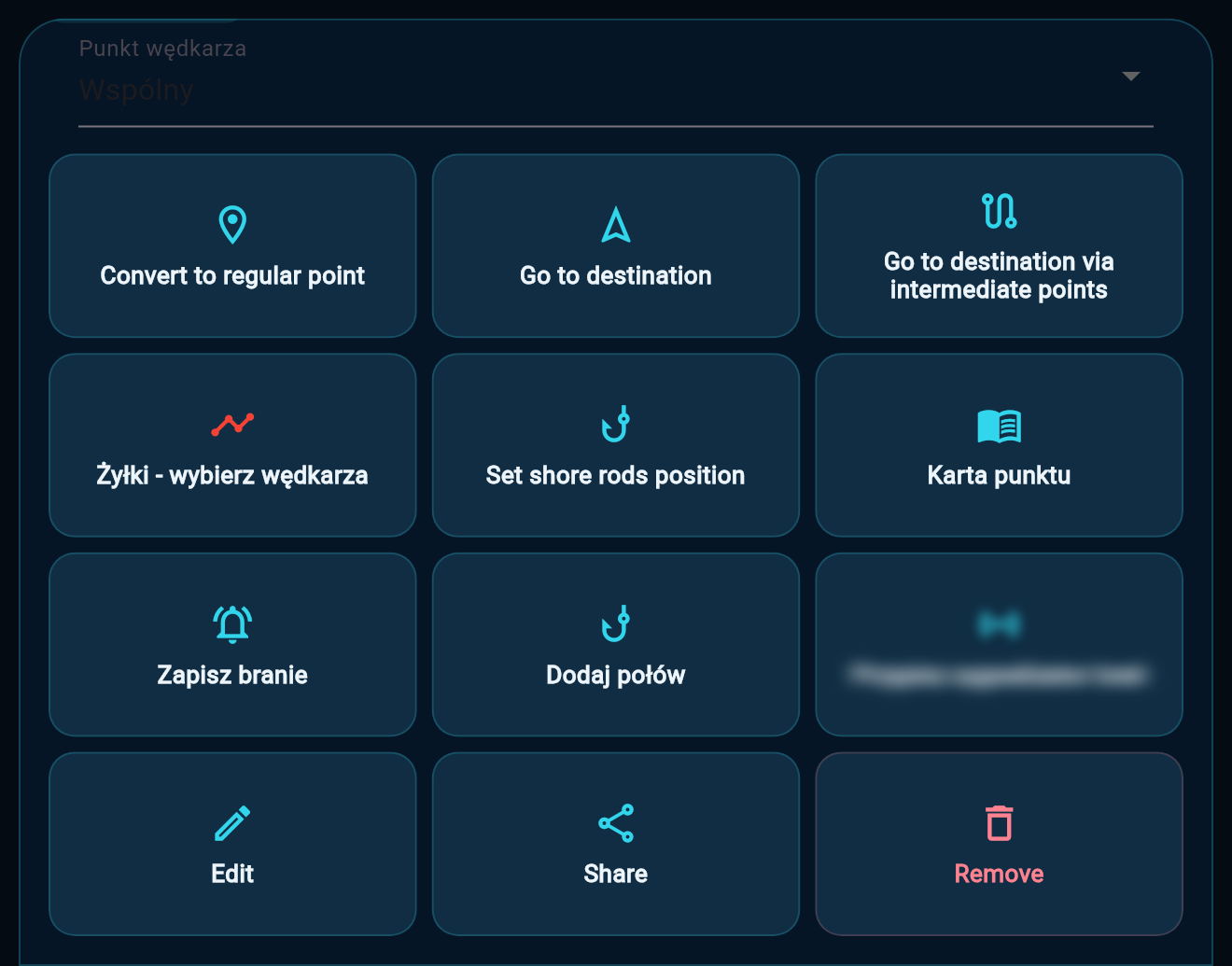
- To delete it, open its menu, scroll to the lower buttons and choose Remove. Conversion to a regular point is not required.
- The green map pin also has a Delete button from version 2.6.74. You do not have to save it first.
 Karpik Kroczek, asystent Extreme One