
Controller buttons your way – Skydroid G16, G20, G30 and RadioMaster AX12 in Extreme One
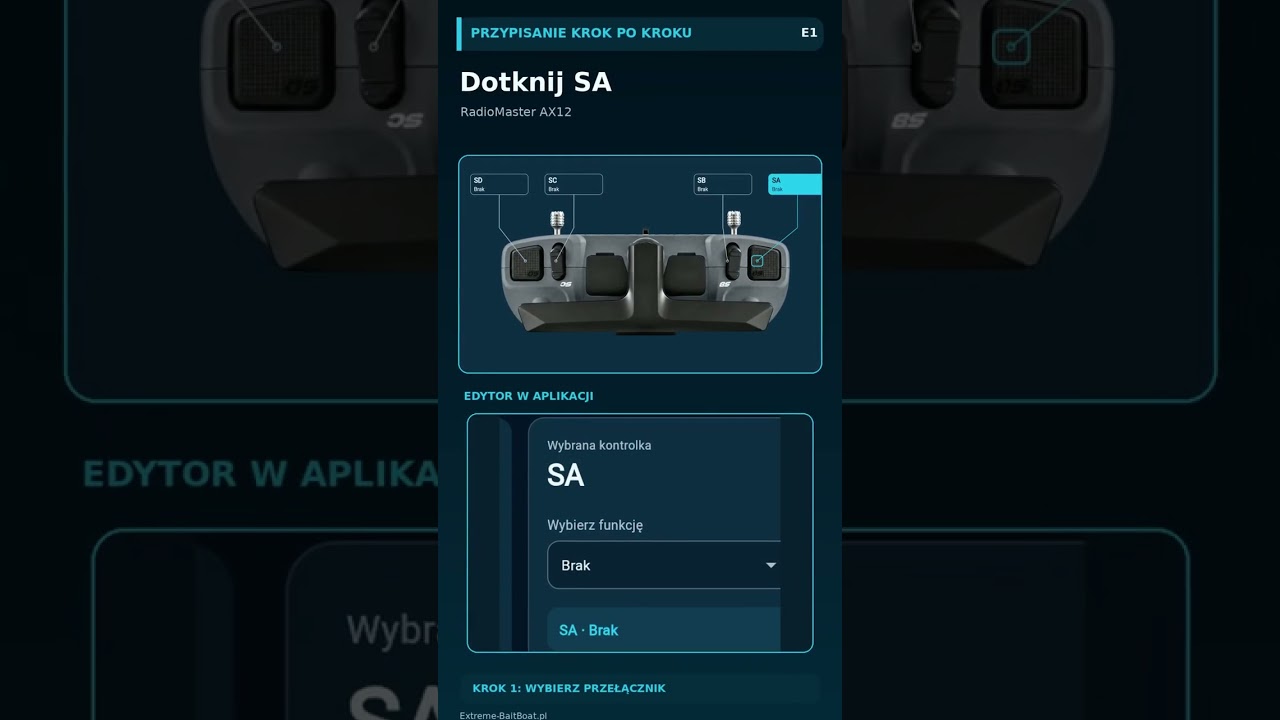
We have refreshed how you assign controller buttons in the app for the Skydroid G16, G20, G30 consoles and the RadioMaster AX12. The video shows how to pick a button directly on a photo of your controller and assign a function to it: lights, outline or return to HOME.
How to assign controller buttons
Instead of a list of technical channel names, you see a photo of your console. You tap the button you want to set up and choose a function from the list. No need to guess which switch has which number or to look it up in the manual.
- open the controller buttons assignment panel in the settings,
- tap the chosen button on the photo of the console,
- choose a function: lights, outline or return to HOME,
- save the changes. In the same panel you can also read the current settings.
The panel works in all app themes, including the new screen themes from version 2.1.112, so it looks consistent with the rest of the app.
Which functions are worth having on a button
Controller buttons make sense for actions you do often or quickly, without looking at the screen:
- lights – switch on the boat lighting during night baiting with one move of your thumb,
- outline – quickly start recording the shoreline or the boundary of the fishing spot,
- return to HOME – when the wind picks up or something goes wrong, the boat returns to the bank without you searching for the option in the menu.
Return to HOME on a physical button is, in practice, a safety feature. In a stressful situation it is easier to press a familiar button than to hit a small element on the screen with your finger, especially in gloves or with wet hands.
Supported controllers
Assigning controller buttons works on the Skydroid G16, Skydroid G20 and Skydroid G30 consoles and on the RadioMaster AX12 from the EXTREME ONE ECONOMY line. Each model has a different switch layout, which is why the panel shows a photo of exactly your controller.
How to match the layout to your fishing style
There is no single perfect setup. Someone who fishes mainly at night will want the lighting always under the thumb. Someone who maps a lot of new waters will reach for the outline more often. It is worth thinking about what you do most often and putting exactly that under the most comfortable button.
A good practice is to keep emergency functions, such as returning to the bank, in a place that is easy to find by feel. Functions you use less often can be assigned to switches located further away. That way you will not press the wrong button in a tense moment.
Why a physical button and not just the screen
A touch screen offers a lot of possibilities, but by the water it has its limits: it reflects the sun, does not like wet fingers and requires you to look at it. A physical button is something you feel under your finger and press without taking your eyes off the boat. When steering at long range, while you watch the boat through binoculars or simply look out for it on the waves, that is a huge convenience.
The refreshed panel is also a step towards full personalisation. We add further functions that can be assigned to the buttons based on your reports from the app. If you are missing something specific, send your idea through the reports menu.
To start with, we suggest a simple test: assign the return to the bank to one chosen switch and practise it a few times on calm water, close to the bank. Once the movement becomes a habit, in tougher conditions you will react by reflex, without searching for the right option on the screen and without unnecessary stress.
Frequently asked questions about controller buttons
Can I change a button assignment at any time?
Yes. The panel can read the current settings at any moment, and after a change you simply save them. For example, you can set up the buttons one way for night baiting and another way for daytime mapping.
Do the controller buttons work the same on every console?
The functions are the same, but each controller has a different switch layout. That is why the panel shows a photo of exactly your model: Skydroid G16, G20, G30 or RadioMaster AX12.
Does assigning buttons change how the sticks steer the boat?
No. The sticks still steer the boat as before. You assign additional functions, such as lights, outline or return to HOME, to free buttons and switches.
Where do I get the new version of the panel?
Just update the app. On the console, open the menu and select “Check for updates”, and the new button assignment panel will appear in the settings.
Which function would you assign first? Let us know in the comments under the video on our YouTube channel.
 Asystent pomocy Extreme One